

Linux Server Benchmarking Tools
Linux Server Benchmarking Tools help admins determine how a server can handle different types of tasks. They test the server’s key components, including CPU, memory, disk drive, and network connection speeds. Running smart tools can help to identify performance problems, compare hardware strengths, and fine-tune server configurations to improve stability in running applications and services.
Why Benchmarking Linux Servers Matters
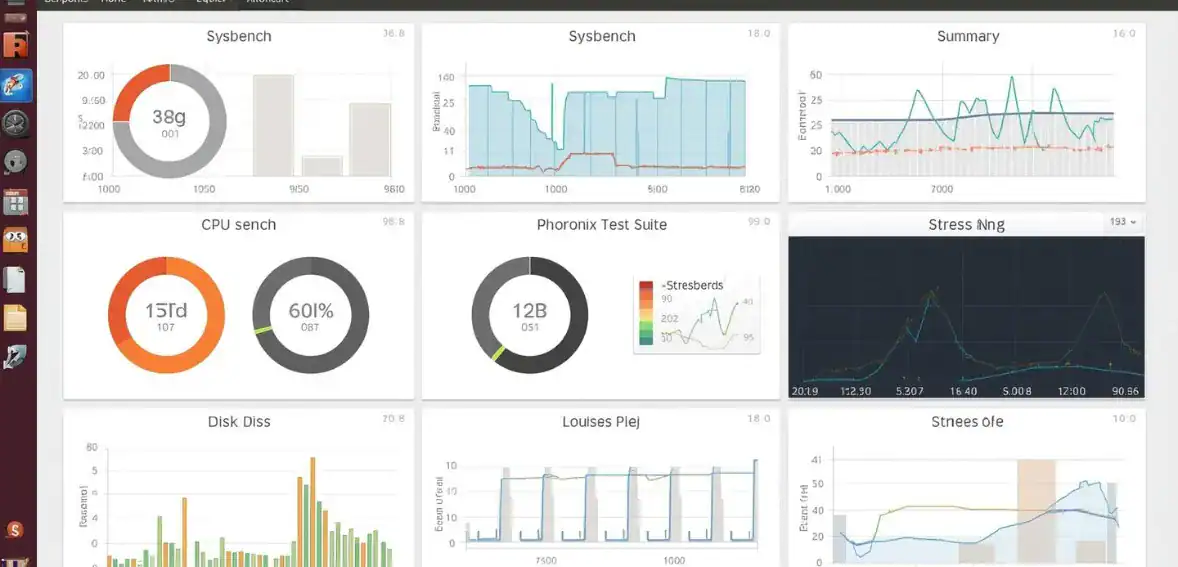
Prior to choosing a benchmarking tool, it’s important to understand why Linux server testing is important.
One advantage is that one will be able to identify why their Linux server is slow. However, by using benchmarking, one will know if their Linux server is slow due to the CPU, memory, storage, or even the network. Once one knows why their Linux server is slow, they will know how to solve the problem.
It is difficult to ignore how benchmarking will assist in the future. With benchmarking, one will know how their Linux server is currently performing. With this information, companies will know how to expand their Linux servers in the future. They will expand their Linux servers in advance, and their Linux servers will still perform as required.
Understanding Server Performance Metrics
CPU Utilization
CPU utilization shows the current utilization of the server’s processing power. High CPU utilization over time indicates that the server is handling high workloads or powerful processes are running. Low CPU utilization indicates that the server has more power than it is utilizing. System administrators generally use top, htop, and mpstat commands to track CPU utilization.
The top command shows a dynamic list of all running processes, along with each process’s CPU utilization. The htop command is similar to top, but it is more visually friendly, making it easier to read the system activities.
The mpstat command is very useful for multi-core processors, as it shows the CPU utilization for each core individually. It is very useful for now, especially for troubleshooting performance issues in server environments. However, it is not possible to get accurate information using the htop command for older systems.
Memory Usage
Right now, the server’s brain is working at some level. When it stays near max for hours, something big is likely chewing through resources. Quiet periods? The machine could be sitting half-empty, waiting. Htop offers an interface that turns complex info into something clearer. When dealing with machines using many cores, mpstat stands out by separating how each one performs. Right now, checking where slowdowns happen on servers often involves these tools. Some programs update live, which means shifts become visible without delay.
Disk I/O Performance
Disk input and output speed shows how fast a server can get data from storage or put data into it. Many apps rely heavily on how well storage performs, especially databases, logging tools, and file services. If the disk system gets too busy, apps may slow down noticeably.
Tools such as iostat, df, and du are used to track storage performance. iostat gives detailed info on disk activity and device usage. df displays current disk space use and how much is left. du points out which files or folders use the most space.
The disk usage data helps to find where resources are being consumed which can help to fix performance issues before they affect users.
Network Throughput
Network throughput shows how quickly data moves between a server and other devices on the network. Poor performance can cause slow page loads or delayed app replies.
Admins use tools like iftop, netstat, and iperf to monitor and test network behavior. iftop gives live views of bandwidth use across connections. netstat lists active connections and network interfaces.
iperf measures the peak speed between two machines. These tools help to identify bottlenecks quickly. The data helps to determine where problems occur mostly.
System Load Average
Busy servers expose themselves through numbers of tasks that are consuming CPU time. Three numbers are represented, each of which shows over sixty, then ten, and finally fifteen times.
A load average greater than the number of CPU cores for an extended time, like hours, might be a sign of overextending the machine. Running `uptime` or `top` can show what that number looks like over time.
A constantly increasing number can be evidence of increasing demands on resources that should be addressed.
Essential Linux Server Performance Testing Tools
stress (System Stress Testing Tool)
The stressing of the server creates artificial workloads that can stress the CPU, memory, or disk. This helps the tech staff understand how the server works when it is used beyond normal capacity. Commands are used to run the tool, which forces the server to use more resources than normal. This helps the admins understand how the server responds to the increased load. This test is useful in determining whether the server can withstand normal conditions. It is used to test the endurance of the hardware before use in production.
Although the test can run for 60 seconds, the server can have four CPU cores. While the test is being run, the server can use the “top” or “htop” command to view the server’s performance in real-time. If the server slows down or overheats during the test, then there might be something wrong with the server. If the server runs normally during the test, then it can handle heavy loads without crashing.
stress-ng (Advanced System Stress Testing Tool)
stress-ng is a more advanced version of the stress tool and can run a wider range of system test options. For instance, the tool can run multiple tasks at the same time, including CPU processing, memory, disks, and kernel. With its ability to run multiple tasks at the same time, admins can test their Linux server performance by simulating actual workload scenarios.
Once the test has been completed, the tool provides information, including operations per second, CPU efficiency, and load. If these numbers are stable and within normal ranges, that means the server can handle heavy loads without compromising performance.
htop (Real Time System Monitoring Tool)
With htop, you’ll get a view that updates in real-time as your programs run or your benchmarking software tests your limits. Instead of raw numbers and a dark screen, you’ll get bars, colors, and movement to illustrate the shifting load. Processes are neatly organized, with each one telling you exactly what’s soaking up your processor or memory. While older tools like top may have given you similar information, they don’t organize it in a way that lets your eyes quickly pick up on patterns.
With htop, you’ll get a clear view of your system’s stats at a glance, without needing to decipher anything when things get stressful. But the best part? It runs right in your terminal, without cluttering your screen with another window. With htop, admins can catch problems before they cause slowdowns and crashes. Even new users can understand what’s going on without needing to learn flags and syntax rules.
iostat (Disk Performance Benchmarking Tool)
The monitoring of disk activity in Linux servers can be done by iostat. This command monitors the number of times data is read from or written to storage devices. This information can be used to diagnose why storage might be slow in applications that rely heavily on storage, like databases or file systems.
The two numbers to keep an eye on with iostat are `await` and `%util`. `Await` measures the average time it takes to complete a disk operation. `%util` measures how full the disk is while it’s in use. Hard to ignore is a %util that’s staying at or near 100% for minutes or more. This probably indicates that the storage is hitting some kind of performance limit. Storage pressure occurs when storage devices are running at or near maximum load for an extended period. This indicates that the storage can’t keep up with the load.
ApacheBench (Web Server Benchmarking Tool)
ApacheBench, or ab for short, is a tool that is meant for testing how efficiently a web server is able to serve web pages. It does this by sending many HTTP requests to a web server and measuring how fast each one is being handled. This tool is included in Apache’s standard package but can also be used on other web servers or API endpoints.
The results show the request rate per second, average response time, data transfer per second, and failures. A good web server will serve many requests in quick succession and will respond in small time periods. If response time grows very quickly as more users are added, something might be wrong with the web server or hardware.
sysbench (Memory Performance Testing Tool)
A measure that some admins rely on involves testing various components of the system, e.g., how fast the processor works, moves data, reads and writes files, and runs database queries. All these are done at actual load, indicating what the machines can handle before they slow down. When too much information is being passed, monitoring the memory becomes critical. Performance monitoring in this case helps to identify limitations that might not have been apparent.
Most times, you can expect to see numbers that indicate how fast the memory moves data, how long it takes to respond, and how fast data is being moved. When the speed increases and delays decrease, this indicates that the memory is working properly, suggesting that the machine can handle tasks.
| Tool | Command | Documentation |
| sysbench | sysbench memory run | https://github.com/akopytov/sysbench |
| stress-ng | stress-ng –cpu 4 –vm 2 –timeout 60s | https://manpages.ubuntu.com/manpages/latest/man1/stress-ng.1.html |
| stress | stress –cpu 4 –timeout 60 | https://linux.die.net/man/1/stress |
| htop | sudo apt install htop | https://htop.dev |
| ApacheBench | ab -n 1000 -c 50 http://example.com/ | https://httpd.apache.org/docs/current/programs/ab.html |
| iostat | iostat -x 2 | https://man7.org/linux/man-pages/man1/iostat.1.html |
Best Practices for Linux Benchmarking

To get reliable benchmark data from a server, follow a few simple steps. Perform tests when the machine is idle, to avoid the situation when background apps or services use CPU, memory, or disk resources, which may disrupt results and reduce accuracy. Repeating the test multiple times helps to avoid one-off issues, so averaging the results gives a clearer picture of true performance.
If the system runs under heavy load, monitor temperature closely. The CPU and other components can heat up significantly. If temperatures rise too high, the system may throttle to prevent damage, which distorts benchmark values. Tracking temperature ensures test conditions match real-world usage.
Benchmarks that reflect actual app behavior show how well the server handles daily operations in production. This kind of testing provides insight into normal workloads and day-to-day performance.
Continuous Monitoring and Regular Maintenance for Server Performance
Server optimization is not a one-time process. There should always be monitoring and routine server maintenance to ensure that the server continues to function properly. Continuous monitoring of server performance helps server administrators understand how the server is behaving during normal operations.
For instance, server administrators can monitor server performance and understand how the server is behaving during normal operations. They can use tools like Nagios and Zabbix to monitor server performance in real-time. These tools help server administrators understand server behavior and can help them identify server problems before they occur.
They can use the tools to monitor server performance and understand how the server is behaving during normal operations. They can use tools like Nagios and Zabbix to monitor server performance in real-time.
Server maintenance is another process that helps server administrators improve server performance. For instance, server administrators can update their server software and operating system to improve server performance. They can also carry out routine server maintenance tasks to improve server performance. For instance, they can clear unnecessary files in the server to improve server performance. They can also use server maintenance tools to clean unnecessary files in the server.
Conclusion
Linux server benchmarking tools are significant in the assessment of the performance and reliability of the system. The tools assist in testing the major resources, such as CPU, memory, disk, and network, to identify possible performance issues before they become a problem for the end user. Benchmarking helps in comparing the configurations, utilizing resources, and ensuring the system is stable, reliable, and able to handle increasing workload.
FAQs
What is Linux server benchmarking?
Linux server benchmarking refers to the measurement of the performance of the Linux server by testing its CPU, memory, disk, and network resources with different levels of workloads.
Why is benchmarking important for servers?
Benchmarking is useful for identifying performance bottlenecks, evaluating the capabilities of the hardware, and verifying that the servers are capable of meeting the real demands of the workload efficiently.
Which tools are commonly used for Linux benchmarking?
Common Linux benchmarking tools are stress-ng, sysbench, iostat, ApacheBench, and htop, which are used for testing the CPU, memory, disk, and web server performance of the Linux server.
How often should server benchmarking be performed?
Linux benchmarking should be performed at the time of setting up the Linux server, after upgrading the hardware of the Linux server, and at regular intervals to monitor the changes in the performance of the Linux server over time.
Can benchmarking affect server performance temporarily?
Yes, Linux benchmarking can affect the performance of the Linux server, as it applies high levels of workload on the Linux server, which can slow down the execution of other processes on the Linux server.